TL;DR: Gemini's Business Notebook reads your Google reviews, customer questions and Business Profile performance data once you connect it, then drafts replies and flags things like an unanswered question or missing holiday hours. Google describes review replies as drafts, but that wording alone does not establish every publication permission, but the profile-edit side is described loosely enough that you should verify your own account's settings before trusting it. Run the supervised test below before you let it touch anything a customer will see.
If someone on your team tapped "Connect your Business Profile" inside the Gemini app and got offered a Business Notebook, they found a real feature, not a glitch or an upsell screen. Google announced it on June 10, 2026, as a way for Gemini to read your Google Business Profile reviews, questions and performance numbers, then draft responses and surface things that need attention (Google's announcement). The honest answer to whether you should turn it on is: yes for drafting, with a short test first, and only after you understand exactly what Gemini can do versus what it is only suggesting you do.
What Is Gemini's New Business Notebook, Exactly?
A Business Notebook is a workspace inside the consumer Gemini app that collects your conversations with Gemini, any documents or sources you add, your connected Google Business Profile data and your website into one place you can come back to. Vishnu Sivaji, senior director of the Gemini app, framed it in Google's post as the thing that turns Gemini from a general chat tool into "an AI assistant that actually knows your business," because it has your real-world context instead of whatever you happen to type that day. The feature launched alongside the Business Profile connection itself, so in practice most people meet the notebook the moment they connect their profile, rather than seeking it out separately.
The practical distinction is the source of context. Instead of pasting the same business description into a fresh conversation, you return to a workspace organized around your business. That does not make every answer correct. A useful notebook still needs accurate source material, a clear task and a person who can spot a mistaken assumption. The naming overlap with Google's research product is worth checking before you follow a tutorial for the wrong interface.
What Data Can Gemini Actually Read Once You Connect Your Business Profile?
Once you authorize the connection, Google's announcement describes Gemini gaining access to customer reviews and the specific feedback inside them, customer questions submitted through your profile, and a set of performance numbers: search impressions, direction requests, call volume and other customer engagement signals tied to your listing. It also picks up your existing profile details, including operating hours and whatever gaps or outdated fields already sit on your listing (Google's announcement).
That is a wider scope than most small business owners expect from a feature pitched as "review replies." Reviews are the most visible piece, but the connection also hands Gemini a live read on how people are finding you and what they are asking before they ever leave a review. If your business handles anything sensitive through its public profile, a health question in a review, an address tied to a protected class of client, that broader scope is exactly why the next section matters more than the headline feature.
What Does Gemini Draft Versus What Can It Publish On Its Own?
This is the question that actually determines whether connecting the feature is safe, and it deserves a direct answer instead of marketing language. For review replies, Google's own wording is consistent: Gemini can "draft a highly tailored response in your brand's voice, referencing the specific feedback the customer left." Draft is the operative word. Nothing in Google's description says a reply posts without a person reading it first, so treat drafting and publishing as separate permissions to inspect.
The picture gets blurrier for profile edits. Google's post says Gemini can help update operating hours, post updates for seasonal changes, and fill in gaps in your profile, without clearly stating whether those actions require a tap to confirm or happen the moment you approve the suggestion in chat. The Google help page also lists creating, scheduling, publishing and deleting profile posts. This is an action-capable connection, so a drafting example is not proof that the whole connection is read-only. The responsible move is to open your own connected account, make one small test change, and watch exactly what happens before you assume a confirmation step exists.
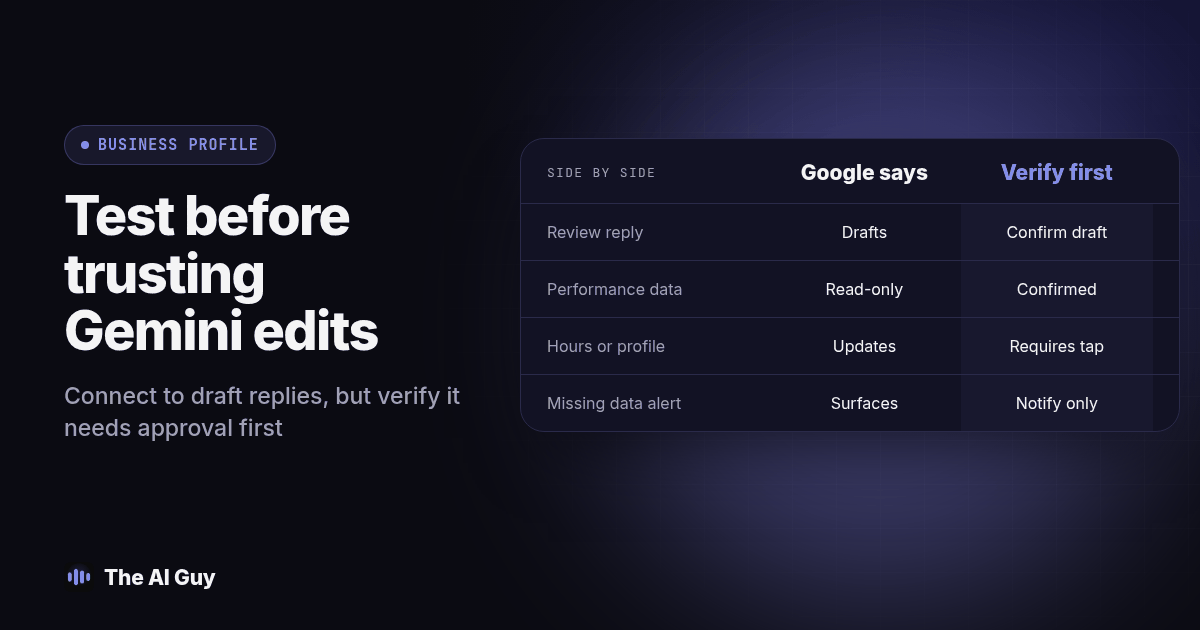
| Action | What Google describes | What to verify yourself |
|---|---|---|
| Review reply | Drafts a tailored response referencing the specific review | Confirm it sits as a draft in your Business Profile until you send it |
| Performance question | Answers questions like how a location performed this period | Read-only; no action to confirm |
| Hours or seasonal update | Gemini can help update hours, post updates, fill profile gaps | Check whether your account requires a confirm tap before anything goes live |
| Unanswered question or missing hours alert | Gemini surfaces it as a proactive alert | Notification only; you still have to act on it |
Use that table as a starting checklist, not a final answer. The point is not that Google is hiding something, it is that public reporting and the product page do not spell out every edit path, and a small business should not treat "probably requires approval" as the same thing as "confirmed to require approval."
How Is a Business Notebook Different From Google's NotebookLM?
The name has changed since the Business Notebook launch. Google renamed NotebookLM to Gemini Notebook on July 16, 2026. It describes that as the same standalone research product under a new name. A Business Notebook is the business-focused workspace in Gemini Apps associated with your Business Profile. Those names sound similar, but they do not establish the same access to a public listing.
For document research, Google's notebook creation instructions describe a notebook as a collection of sources for a project. You add material, then ask questions about it. For this article's workflow, the important input is a connected Business Profile. Before following a guide, check whether its screenshots show a source collection for research or a business connection that can affect customer-facing information.
Do not infer that connecting a profile gives every research notebook permission to update it. Equally, do not assume that a familiar notebook interface makes the business connection read-only. Write down the product name, signed-in account and connected app shown on your own screen. That small record helps a colleague reproduce the test instead of accidentally testing a different Google product. Our guide to the NotebookLM rename covers the separate research workflow.
What Should You Check Before You Tap Connect?
Treat this connection the same way we tell owners to treat any OAuth-style request for business data: the permission screen is less important than what sits behind it (our guide to giving an AI assistant access to your email). A few concrete things to confirm first:
- Confirm who in your business actually manages the Business Profile today. Gemini connects to the account that already has manager or owner access in Business Profile Manager; it does not grant new ownership, and it will not fix a profile your team has already lost access to.
- Check eligibility before connecting. Google's help page currently lists a personal account, one verified profile, Keep Activity enabled and web access. Do not assume an account managing several profiles can create this notebook. Check the current requirements and the option actually offered in your account.
- Decide who reads every drafted reply before it posts, using the same star-rating discipline we recommend for AI-drafted review replies generally (our full breakdown of when AI should and should not reply to Google reviews).
- Note where you would go to disconnect it. Google's help page points to Connected Apps Settings for disconnection. Find that control before you need it under pressure, and record which account owns the connection.
What's the Safest Way to Test a Business Notebook Before You Trust It With Real Customers?
Run this before anyone on your team treats a Gemini-drafted reply or a Gemini-suggested profile edit as ready to go live.
- Pull a handful of your most recent published reviews, spread across ratings, not only the flattering ones.
- Connect your Business Profile to Gemini and ask it to draft a reply to each review you pulled, using the exact review text.
- Read every draft against the original review and mark anything invented: a policy, a promise, a fact about your business that is not actually true today.
- Ask Gemini a plain performance question, such as how your location performed recently, and check the numbers it gives you against what you can see directly in Business Profile Performance.
- If a genuine hours correction is needed and the owner authorizes it, record the existing value before requesting that correction. Inspect any confirmation screen, approve only the accurate change, and verify the public listing afterward. Otherwise, keep this step to a draft and mark publication behavior untested.
- Inspect any proactive alert already available, such as a missing seasonal hours flag, and confirm it is accurate before acting. If none appears during your session, record that result and return later; do not invent a profile error to trigger one.
- Decide, in writing, who on your team reviews drafts before they post and what happens on the lowest star ratings specifically, the same rule we recommend for any AI review-reply workflow.
These seven steps are an editorial acceptance test, not a claim that we tested a connected customer account. Eligibility and permissions still apply. Keep a simple log of what you tested and what you found instead of relying on memory a month later when someone asks why a reply went out with a mistake in it.
Keep a worksheet with the prompt, source record, proposed output, reviewer and final decision for each step. For a review draft, a pass means it acknowledges the actual feedback without adding an unverified refund, visit detail or service promise. For a performance answer, a pass means the metric name and date range match the source screen. If a number differs, stop and resolve the definition before calling it a trend.
For an edit, a pass means the owner understands what will change and the resulting public value is accurate. A missing confirmation, wrong location or unexpected action is a reason to stop that part of the workflow. Save the result as untested or failed instead of treating silence as approval. Disconnect if the permissions exceed what the team intended to allow, and return to manual profile management while you investigate.
Who Should Turn This On First, and Who Should Wait?
A single-location business that already answers its own reviews and checks its own profile data is a reasonable candidate to connect this now, run the test above, and start saving drafting time. A business juggling several locations, a regulated service where a review might reference a medical or legal detail, or a team that has never had a written rule for who approves public-facing replies should run the test privately for a week or two before letting Gemini touch anything a stranger will read.
Either way, visibility and accuracy are two different goals, and it is worth keeping them separate. Getting found by Gemini and other AI tools in the first place is a distinct project from what you do once a customer already found your listing and left a review (our guide to getting your business named in ChatGPT answers). A Business Notebook helps with the second problem; it is not a visibility strategy by itself. If you want a second set of eyes checking exactly which permissions an AI connector like this one touches before your team turns it on, ask MetaTechAi's managed services team whether a scoped permissions review fits your business before agreeing on implementation work.
If you would rather talk through your specific setup, a single location versus several, a regulated service versus a general one, before you connect anything, contact us and describe what your Business Profile actually looks like today.
What FAQs Do Owners Ask About Gemini Business Notebooks?
Does connecting Gemini to my Google Business Profile cost anything beyond what I already pay for?
Google's announcement does not attach a separate charge to the connection itself; it describes Business Notebooks as part of the Gemini app you already use, with special Workspace and Gemini offers mentioned as forthcoming rather than priced. Treat any specific offer you see in your own account as the current truth, not this article.
How long does the Business Profile connection actually take to set up?
Google describes it as a single-tap authorization inside the Gemini app rather than a multi-step form, which matches how most Google OAuth connections behave. We have not independently timed a setup from a fresh account, so treat single-tap as the described mechanism, not a verified number of minutes.
Will Gemini auto-post review replies, or does a person still have to approve them?
Google's own description uses drafting language: Gemini drafts a tailored response for a review, it does not say the reply posts on its own. Profile edits like hours or seasonal updates are described less precisely, so check your own account's settings for an approval step before assuming one exists, and do not turn on any auto-post option until you have tested it the way this article describes.
Does this work yet if my business has more than one location?
Do not assume it does. Google's help page currently restricts this workflow to owners or managers of one verified profile. Check current eligibility in your own account before connecting; access to a profile integration does not by itself prove that you can create a Business Notebook.
Is a Gemini Business Notebook the same thing as NotebookLM?
No. Google renamed the standalone NotebookLM research product to Gemini Notebook in July 2026. A Business Notebook is the business-focused workspace in Gemini Apps associated with your connected Business Profile. Check which product and connection you are using before assuming that its permissions match a document research notebook.