TL;DR: It can be reasonable when the requested permissions fit the task, you accept the provider's data handling, and you test how to remove access. Google grants access in named scopes (read-only, send, modify, or full account), an individual Gmail approval does not itself grant access to every company mailbox, and you can see and revoke any connection from your Google Account or Admin console at any time.
Key Takeaways
- Check both the app provider and every requested permission; neither check replaces the other.
- Read-only, send-only, modify, and full account are four different levels of risk, not one generic "email access."
- An individual Gmail grant is tied to that user; domain-wide delegation is a separate administrative authorization.
- Know how to remove access, and verify that removal takes effect before treating the connection as closed.
- Treat this the same way you'd treat a new hire's building key: give the narrowest access that gets the job done.
An AI email connection can be reasonable when its permissions match a defined task, the provider's data handling is acceptable, and someone owns the review and removal process. This guide focuses on Gmail and Google Workspace. Other email systems have their own permission models, so do not carry these scope names into a different provider's settings.
Consider a fictional office manager who only wants a morning summary of unanswered customer messages. That job does not justify permission to send replies or permanently delete mail. Start with the task, write down what success looks like, and compare that requirement with the access request before connecting a real business mailbox.
What Permission Is an AI Tool Actually Asking For When It Wants Your Email?
When an AI assistant, a custom GPT, or an MCP-connected agent asks to "connect to your email," it is really asking Google for one or more named OAuth scopes, and each scope maps to a specific, documented capability rather than a vague blanket grant (Google's OAuth 2.0 protocol documentation). The pop-up usually shows plain-language lines like "Read, compose, and send email from your Gmail account," and the request can include several scopes. Ask the provider for the actual scope list if the wording leaves the boundaries unclear.
This matters because the words on the button, "Allow," are the same no matter which scope sits behind them. A tool asking for read-only access and a tool asking for full account control both show you an Allow button that looks identical. Read the permission descriptions and the provider documentation together. A familiar app name is not evidence that the requested access fits your task.
Those scope descriptions can be unfamiliar, so translate each request into the actions it permits. Once you know the four or five shapes these requests actually take, you can turn an unfamiliar consent screen into a concrete access decision.
What Do the Different OAuth Scopes Actually Let an AI Tool Do?
Gmail and Workspace access breaks down into a handful of real tiers, and the tier an AI tool requests should match the job you're actually hiring it to do, not the job it might someday do.
| Access requested | What it permits | Main exposure | Task fit |
|---|---|---|---|
| Read-only, gmail.readonly | Reading mail and settings | Confidential content can leave the inbox | A summary or search task |
| Send-only, gmail.send | Sending mail without reading existing messages through this scope | Unauthorized outgoing messages | Sending from separately supplied information |
| Modify, gmail.modify | Reading, composing, sending and changing messages, excluding immediate permanent deletion | Unwanted replies or mailbox changes | Supervised inbox triage |
| Full mail, mail.google.com | Broad mail access including permanent deletion | Irrecoverable message loss | Only a documented need for that capability |
| Domain-wide delegation | Acting for users within administrator-authorized scopes | Access can extend across company accounts | Carefully reviewed administrative integration |
These are comparison categories, not a complete permission ladder. Domain-wide delegation is an authorization mechanism, not a Gmail scope. Gmail settings also have separate scopes. A tool may request a combination, so assess the complete list rather than picking the closest row. Google's Gmail scope reference documents the boundaries. Full mail access is not blanket control of every Google Account setting.
Read-only still deserves scrutiny: a tool that cannot send can nevertheless receive sensitive information. Ask what leaves Google, who can access the resulting copies, how long they remain, and whether the provider uses them for model training. Record the provider's written answer instead of assuming that a narrow scope answers those separate questions.
Can the AI Tool See Every Inbox on Your Company's Domain, Not Just Yours?
The answer is no, not from one person's approval alone. When an individual employee connects an AI tool to their own Gmail or Workspace account, that Gmail grant is associated with the authenticated user. It does not automatically authorize every other employee. However, information from other people may already be present in forwarded messages, shared conversations, or attachments inside that mailbox.
A separate route is a Workspace-specific mechanism called domain-wide delegation, where a super admin authorizes a service account from the Admin console to act on behalf of every user on the domain, within the scopes the administrator authorizes, without each user individually consenting. See Google's domain-wide delegation guidance. That is a deliberate, admin-only configuration step, not something a single employee's OAuth click can trigger by accident. If an AI vendor is asking your team to set up anything resembling domain-wide access, that request should go to whoever controls your Workspace Admin console, not to the first employee who wants to try the tool.
Keeping that distinction straight is the difference between "one person tried a risky tool on their own mailbox" and "the whole company's email is now reachable through one connection." Either case deserves a review of the data and actions involved. Mail in one account can still include sensitive information about the whole business; the number of connected accounts does not determine the seriousness on its own.
How Do You Check Which Third-Party Apps Already Have Access to Your Inbox?
Before you evaluate a new request, it helps to know what is already connected, because old approvals can outlast the task that originally justified them. This is the same discovery discipline we walk through in our guide to finding unauthorized shadow AI tools, just narrowed to the inbox specifically instead of every tool staff might be using.
A Workspace admin can pull the full list from the Admin console's API access controls, where connected-app information includes requested services, scopes and user counts. Google notes that app details can lag changes; use its app access control instructions to interpret the inventory and available controls. An individual user, with or without a Workspace admin, can check their own Google Account's security settings for the shorter list of apps they personally approved, and review connection details using Google's third-party connection guidance.
Run that check on a schedule, not just once. Apps get approved quietly over months, usually by whoever was trying to get a task done quickly, and a list nobody has looked at in a year is exactly where an unexpected full-account grant tends to hide.
What Should You Check Before You Click Allow on a New AI Email Request?
Use this sequence every time, whether the request comes from a new AI assistant, a custom GPT, or an MCP-connected agent a developer on your team is testing.
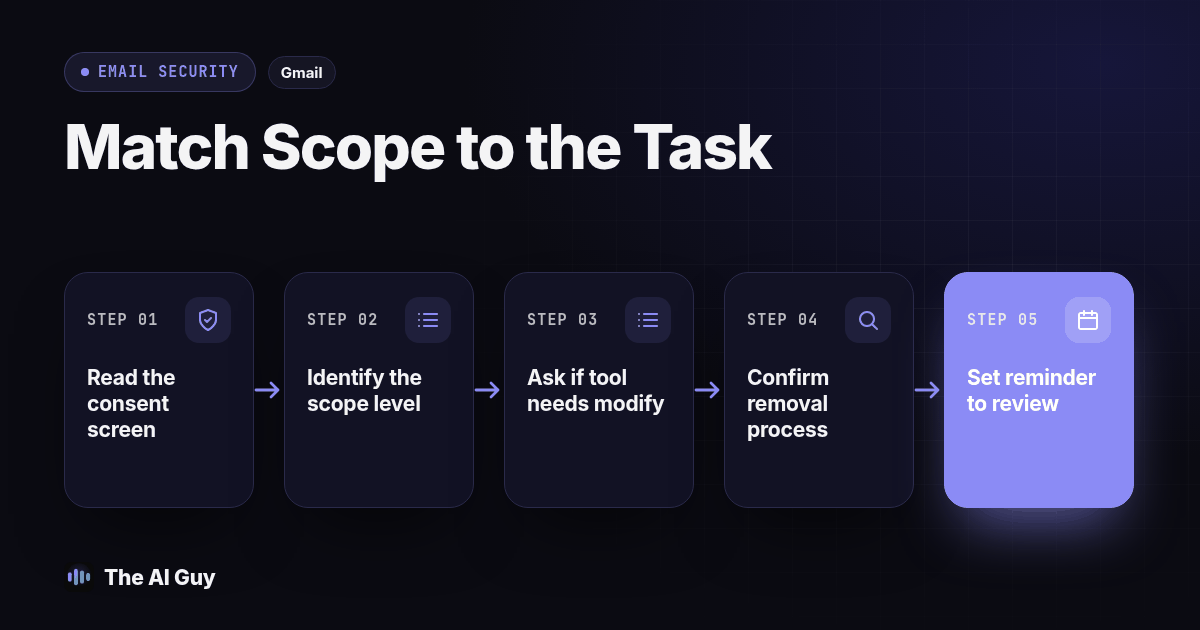
- Open the consent screen the tool shows before you click Allow, and read every line listed under the "This app wants to" heading instead of skimming past it.
- Identify whether the listed scope is read-only, send-only, modify, or full account access, since each one maps to a different level of risk.
- Check whether the request mentions your whole Workspace domain or just your personal account; a request scoped to "your account" cannot reach a coworker's inbox on its own.
- Ask whether the tool actually needs modify or full access for the task you're hiring it for, or whether read-only would cover the job just as well.
- Confirm who controls this connection going forward. Identify both the user and administrator who can remove or block access, and document which accounts the integration touches.
- After approving it, look the app up in your connected-apps list (personal or Admin console) to confirm the granted scope matches what the consent screen actually showed.
- Set a reminder to review the connection again in ninety days, since a vendor can expand a tool's features later without a fresh approval prompt, as long as the original scope already covers the new capability.
Copy this before you approve any new AI tool's email request:
- [ ] I read the exact scope on the consent screen, not just the app's name
- [ ] I know whether it's read-only, send-only, modify, or full account access
- [ ] I confirmed this request is scoped to one mailbox, not the whole company domain
- [ ] I checked whether a narrower scope would still do the job
- [ ] I know exactly where to go to revoke this access later
- [ ] I added this tool to our approved list, the way we lay out in our one-page AI use policy guide
Before connecting the working inbox, rehearse this checklist in a dedicated test mailbox with fictional customer messages. Include an ordinary inquiry and a message containing a request to forward confidential material. Check the assistant's proposed response against the permitted task. Email content should be treated as material to process, not as authority to expand access or approve an action.
Keep a short test record: requested permissions, approved task, expected result, observed result, reviewer and removal check. For a summary tool, the expected result is a useful summary without sending or changing mail. For a reply workflow, require a person to approve the recipient, attachments and final text. A successful demonstration does not prove future safety, but a failed boundary check is a clear reason to stop the rollout.
How Fast Can You Revoke Access Once You've Approved It?
Remove the connection through your Google Account's third-party access settings, or ask the Workspace administrator to apply the appropriate app control. Then verify that the integration cannot retrieve fresh mail or perform another authorized action. Google's token revocation documentation warns that revocation can take time to have full effect. Do not promise an instant cutoff.
Pause scheduled jobs in the tool as part of the removal procedure. Record when access was removed, what you tested afterward, and who will follow up if the connection still works. If the app used administrator-authorized delegation, involve that administrator rather than assuming a personal account setting removes every access route.
What revocation does not do is pull back anything the tool already copied, summarized, or stored somewhere outside your inbox before you removed it. If a tool had modify or full access for months and you're only now checking what it did, the removal step stops future access; it does not audit the past. That's a separate conversation, usually with whoever built or sold you the integration, about what their system retained and for how long.
If your AI tooling reaches beyond a single inbox into your CRM, sales pipeline, or customer records, the access-control problem gets bigger than one consent screen. MetaTechAi's guide to data security layers in an AI sales architecture walks through that broader version of the same question, for teams whose AI already touches more than email.
What FAQs Do Small Business Owners Ask About AI Email Access?
What's the single most important thing to check before approving an AI tool's email request?
Check every requested permission against the actual task, and check the provider's data handling. Read-only access can expose confidential mail; permission to send or change messages adds further risks. Do not approve broader access just because the app name is familiar.
Can an AI assistant connected to one employee's email see every other inbox on the same company domain?
An individual Gmail OAuth grant does not automatically authorize every company mailbox. Domain-wide delegation is a separate administrator-controlled route. Review that configuration and other existing connections before concluding how many accounts the tool can reach.
How do I see which third-party apps already have access to a business Gmail or Workspace inbox?
A Workspace admin can review connected-app information and access settings in API controls. Individual users can review their own third-party connections in Google Account settings. Inventory details can lag changes, so confirm the connection you are investigating.
How fast can I revoke an AI tool's access once I've approved it?
You can request removal through your account settings, but revocation can take time to have full effect. Verify that fresh access fails afterward. Removing the connection does not retrieve information the provider already copied or stored.
What Should You Do With This Today?
Pull up your own connected-apps list before you approve anything new, and record the tools you still need and the person responsible for each. Then, the next time an AI assistant or MCP-connected agent asks for email access, run it through the seven-step check above before you click Allow, not after.
If you're trying to figure out which parts of your business are safe to connect to AI and which still need a tighter boundary, talk to our team about your actual setup instead of guessing at a consent screen alone.