Short answer: If your business already uses Microsoft 365, check which Copilot capabilities are included in your exact plan, then test them on work tied to existing files. Try ChatGPT on tasks that start outside the suite or fit its supported connectors. Compare current plan terms, review results, and assign only the access a task earns.
What Is the Practical Difference Between Copilot and ChatGPT?
Copilot is a family of assistants across Microsoft products. Capabilities depend on the experience, license, and permissions. Microsoft 365 Copilot can use Microsoft Graph data that a signed-in person is allowed to access, as explained in Microsoft's privacy documentation. Copilot Chat and Microsoft 365 Copilot are different experiences, so check which features your plan includes. ChatGPT is separate from an office suite and supports workspace features and connectors that vary by plan and setup.
Copilot may reduce copying when a task starts in Microsoft 365. ChatGPT may fit tasks that start from a blank page or span tools. In either case, review the answer against source material.
How Should You Compare Their Costs?
Copilot is not one license. Microsoft lists business plan variants with Copilot built into Microsoft 365 apps, while other configurations may have different included capabilities or need a separate license. Check Microsoft's current business plan comparison and your admin center to confirm availability and terms.
If Microsoft 365 is already required for email and documents, treat its existing cost as common to either choice. Compare the Copilot add-on only for users who need it. Pull your invoice and admin center license list before comparing costs.
What Should You Check on ChatGPT Pricing?
ChatGPT has its own plan and billing structure. Check OpenAI's current pricing page for available plans, terms, and features. Compare the option that meets your team's needs with the Copilot add-on for the same user count.
Do not carry an old price comparison into a new purchase. The relevant costs depend on current plans, billing terms, and which features your team will use.
Put the comparison in a small worksheet with one row per person who needs the tool. Record the existing Microsoft 365 plan, any Copilot add-on, the ChatGPT plan under consideration, billing term, required features, and renewal date. Mark features that are included separately from features that require an additional license. Ask the administrator or vendor to confirm any unclear entitlement before assigning the seat. This avoids comparing a consumer tool with a business workspace or an included chat experience with a more capable paid product as if they were equivalent.
Which Tool Fits Common Small Business Tasks?
Compare the option against the task, source location, and review burden. Copilot may help when the material is already in a supported Microsoft 365 service and the employee has the right permissions. ChatGPT may be more convenient when the team starts with a prompt, a supplied document, or an approved connector. These are starting hypotheses to test, not guarantees about every plan. A feature can vary by license, region, administrator settings, and product version.
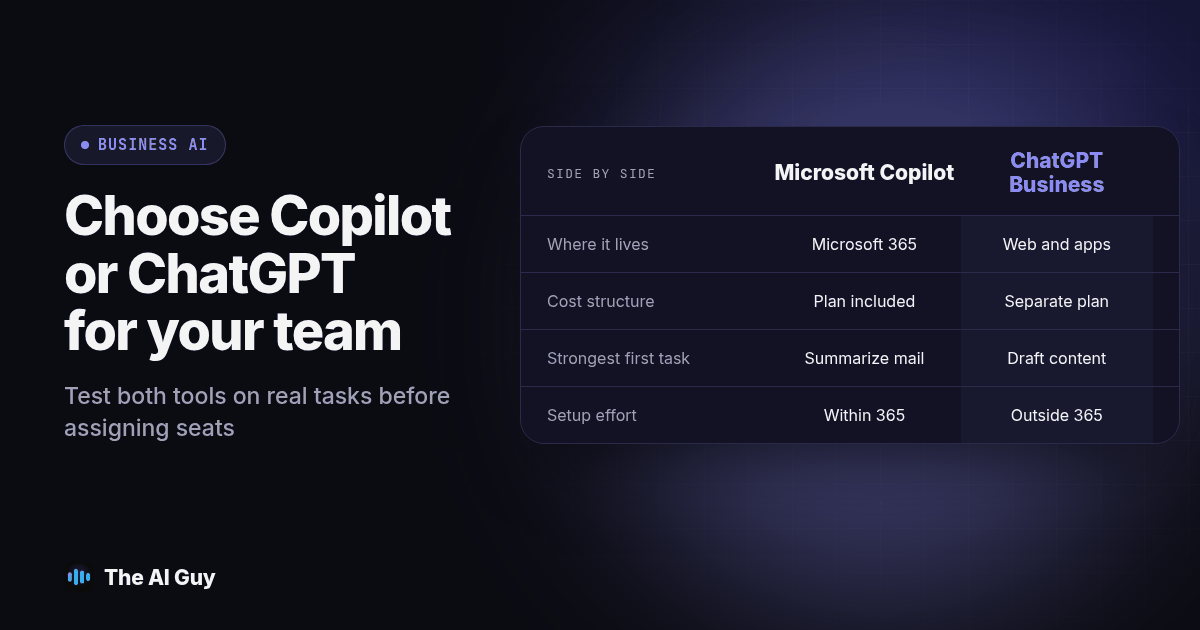
| Factor | Microsoft Copilot | ChatGPT Business |
|---|---|---|
| Where it lives | Supported Microsoft 365 experiences, depending on license | Web, desktop and mobile apps, plus connectors you set up to outside tools |
| Cost structure | Some Microsoft 365 plans include Copilot capabilities; other configurations may require a separate license | Separate plan and billing structure; check current pricing and terms |
| Strongest first tasks | Summarizing an email thread or a meeting transcript, drafting inside a Word or Excel file that already exists | Drafting and analysis that does not depend on a Microsoft 365 file |
| Setup effort | Low for Copilot Chat on a qualifying plan; higher for the full add-on once permissions and connected content are reviewed | Low to start; higher once you connect outside tools or build repeatable assistants for specific tasks |
What Data and Privacy Settings Should You Check Before Connecting Files?
Microsoft says Microsoft 365 Copilot respects existing access controls, so overshared files may become easier to surface through an assistant. Review SharePoint and OneDrive permissions before connecting broad company content. Microsoft's privacy documentation describes how prompts, responses, and Graph data are handled.
OpenAI says business workspace data is not used to train its models by default, as described in its ChatGPT Business privacy documentation. Confirm the terms and controls for the exact plan and connectors you use. Neither a training setting nor a vendor statement replaces your own access controls.
Before a pilot, check sensitive folder access, confirm each user's plan, define data that staff should not enter, and assign a person to review outputs and report problems.
Make the rules operational. Name the tools and accounts staff may use, describe which business information is permitted, and tell them how to report an unexpected result. If an assistant produces a customer-facing reply, someone should check the message against the current service policy and customer record. If it summarizes an internal decision, retain the original source and have the meeting owner confirm the summary before tasks are assigned. A prompt is not an access policy, and an answer is not an authoritative record.
Which Tasks Should You Hand to Copilot First?
Choose tasks where the source already lives in Microsoft 365. Use low-risk work first and confirm which Copilot experience the account provides.
- Summarize an email thread into open questions, owners, and replies owed.
- Ask for a formula or pivot in a recurring report, then verify it against the source rows.
- Prepare a meeting brief from permitted notes and check each action against the transcript.
Which Tasks Should You Hand to ChatGPT First?
Choose tasks that do not depend on an existing Microsoft file. Use approved facts and keep a person responsible for final wording.
- Draft a sales page or job posting from approved facts.
- Ask it to organize tradeoffs for a staffing decision, then check assumptions.
- Try a reusable project or custom GPT for a repeat task. Our guide compares ChatGPT Projects and custom GPTs.
When Does It Make Sense to Use Both?
Both can make sense when they serve separate tasks. A team could test a supported Microsoft experience for internal email summaries and ChatGPT for drafting from approved notes. This is a workflow example, not a promise that a specific connector or feature is included in every plan. Assign access only to people who need it and check whether each seat remains useful.
The decision can also vary by role. A person who lives in Outlook and Teams may benefit from an approved assistant that works with those sources. A person preparing original marketing drafts may care more about flexible instructions and a separate workspace. Some employees may need neither tool for their current responsibilities. Start with the task inventory rather than assuming every seat should have the same software.
Our guide on setting up ChatGPT for business the right way walks through picking the first five tasks before buying seats for a whole team, and the same discipline applies to Copilot. We hear a related question almost as often: an owner already paying for ChatGPT asks whether they should also learn Claude, worried about losing everything ChatGPT already knows about their business. If that is closer to your real question, our piece on switching from ChatGPT to Claude for business covers what context does and does not carry over.
If neither fits a workflow, MetaTechAi explains when to build a custom AI agent or buy an off-the-shelf service.
How Can You Compare Both Tools With a Fair Team Test?
Run this before assigning seats across the team. It uses a small sample so staff can compare outputs without putting sensitive information into an unreviewed workflow.
- Choose three repeatable tasks. Pick one that uses an existing Microsoft file, one that starts outside Microsoft 365, and one where an error would matter.
- Set safe inputs. Use approved records, remove details not needed for the task, and keep an authoritative source copy. Do not invent test facts that make verification impossible.
- Write the pass criteria. Define the required details and format before asking either assistant. For an email summary, that might mean decision, owner, due date, and source message.
- Run comparable tasks. Use each product and connector the way your team expects to use it. Note which permissions, account types, and setup steps were required.
- Check every factual claim. Compare names, dates, amounts, and commitments with the original material. Record omissions, unsupported statements, and any detail that should have been marked unknown.
- Record total effort. Time setup, prompting, review, corrections, and handoff. A fast draft does not save work if someone must reconstruct its sources.
- Repeat on a second example. Apply the same criteria to another task instance to see whether the first result was representative.
- Decide by task, then assign access. Keep only the feature that passed for a real job, identify a human reviewer, and set a later date to revisit usage and permissions.
Write down the result narrowly: for example, “the summary captured all listed action items after a person checked owners.” Avoid a blanket claim that a tool is accurate. Keep the task source and the reviewer's decision available for follow-up.
What Are the FAQ Answers About Copilot and ChatGPT?
Is Copilot cheaper than ChatGPT if we already pay for Microsoft 365?
It depends on your Microsoft 365 plan, Copilot features, and current ChatGPT plan. Microsoft lists business plan variants with Copilot built into Microsoft 365 apps, while other configurations may have different included capabilities or need a separate license. Compare vendor pricing for the same number of users.
How long does it actually take to roll either one out to a small team?
A basic trial can start quickly. Before expanding access, review file permissions, set staff rules, and test real tasks with a reviewer.
Does either one connect to the tools we already use, like our CRM or our calendar?
Copilot works with supported Microsoft 365 apps and services. ChatGPT connectors vary by plan and setup. Check current documentation for your CRM and calendar, then confirm the available permissions and actions in your account.
Is it safe to put customer or financial data into either tool?
Vendor data controls do not replace your access controls or data rules. Review terms for your exact plan, limit sensitive inputs, and give staff a clear handling process. Decide who can connect files, who approves shared assistants, and who removes access when a staff member changes roles.
If we start with ChatGPT, is it expensive to also try Copilot later, or the other way around?
Cost depends on the plans and seats. Preserve useful instructions, files, and workflows, then test the replacement before changing access.
Where Should You Start?
Check each employee's Microsoft 365 plan and list recurring tasks with source material already in the suite. Test with approved inputs, score the answers, and assign only useful seats. For help choosing a workflow, contact us with the task and tools your team uses. Bring a sample with private details removed, the output you need, and the review step that must remain with a person. You can also ask the administrator to show the exact product experience available in your tenant before you compare it with another subscription.