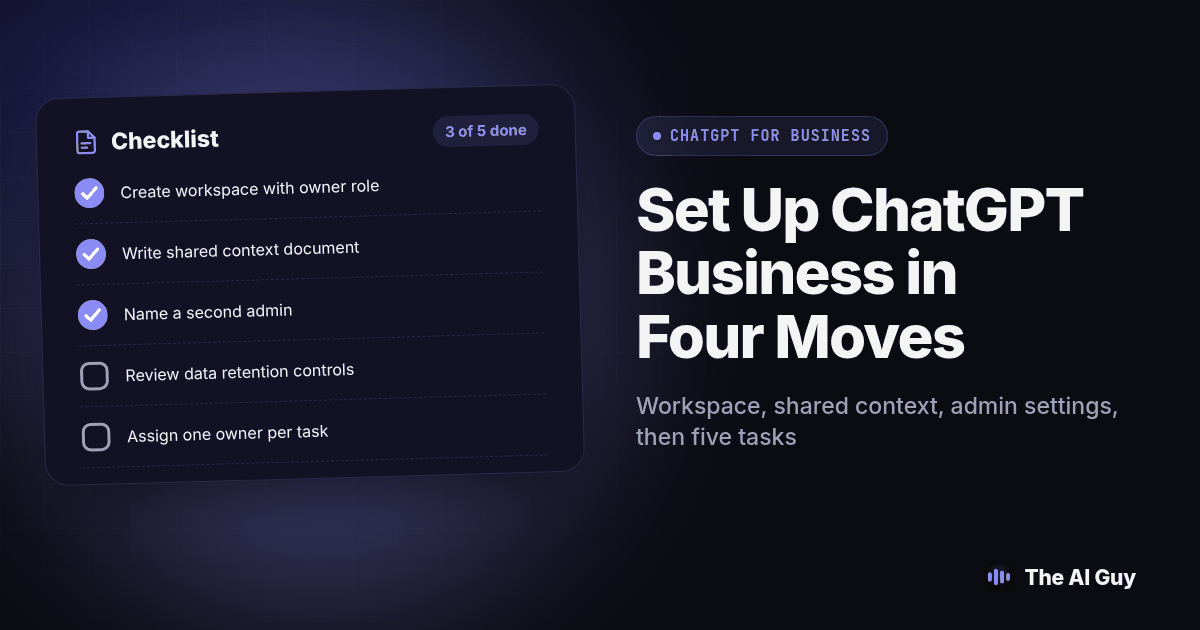
TL;DR: Set up ChatGPT for business in four moves, in order: buy the right seats in a real workspace instead of letting staff use personal logins, write down shared company context once instead of retyping it into every chat, lock the admin and data settings before anyone starts typing, then pick five real tasks to automate in week one and test each one against a real example before you trust it.
A small business rollout needs a practical answer to one question: how do we give staff a useful assistant without creating a different process for every person? Missing context, unclear ownership, and unchecked settings can turn a promising tool into extra review work. This guide proposes a first week pilot, with a named owner and a repeatable test for each task. The schedule is a recommendation, not a promised implementation time.
What Does "Setting Up ChatGPT for Business" Actually Involve?
Setting up ChatGPT for a team is four separate jobs, and treating them as one job is where most rollouts go sideways. There is the account layer: who has a seat, under what workspace, with what role. There is the context layer: what the assistant knows about your business before a staff member types a word. There is the control layer: what data gets retained, who can invite members, and which connected tools can touch company information. And there is the task layer: the real work you point the tool at once the first three layers are in place.
Do these in that order. A team that jumps straight to the task layer, picking five automations on day one, usually has to redo a chunk of that work once somebody finally asks who can see the chat history or whether a contractor's personal account is still logged in on a shared laptop. OpenAI's own documentation on ChatGPT Business treats the workspace, not the individual account, as the unit you manage (OpenAI's ChatGPT Business overview), which is the right mental model to start from.
Which Workspace and Seats Should You Buy First?
Start with one workspace, not a scattered mix of personal Plus accounts your staff pay for themselves and expense later. Create the workspace, keep your own account in the owner role, and resist the urge to make every early user an admin too; most staff only need member access, and a smaller admin list is easier to audit later.
Buy seats for the people who will use the tool weekly, not for everyone on the roster "just in case." OpenAI's workspace management guidance covers inviting members, assigning roles, and removing access when someone leaves (OpenAI's guide to managing a ChatGPT Business workspace); read it once before you send the first invite rather than discovering the removal process the day someone quits.
Name a second admin before you need one. If the owner is the only admin and goes on vacation during a workspace problem, nothing gets fixed until they are back online. Pick an operations lead or a trusted manager and give them admin access on day one.
How Do You Give ChatGPT Shared Company Context From Day One?
This is the step most small businesses skip, and it is the one that makes the biggest difference. Without shared context, every staff member explains your pricing structure, your tone, and your product details from scratch, in every new chat, forever. With it, the assistant already knows the basics and staff spend their time on the actual task instead of re-briefing a tool that forgot everything overnight.
Write a short business context document before anyone starts real work: what the business does, who the customers are, the tone it uses in writing, and the handful of facts that show up in almost every conversation, like service area and typical turnaround. Keep it to one page.
Decide where that context lives. Keep the approved company document outside ChatGPT, then add it to the shared Project or GPT used for each task. Do not assume one workspace instruction automatically supplies that context to every chat. A project can hold files and instructions for an ongoing subject, including shared team work. OpenAI documents that project instructions apply within that project; our ChatGPT Projects vs custom GPTs guide covers that difference. Review the context document every few months, since a business that changes its pricing or service area and forgets to update the shared instructions ends up with an assistant that confidently repeats outdated facts to a customer.
Which Data and Admin Settings Should You Lock Down Before Anyone Starts Typing?
Do this before the first real task, not after a scare. Separate a company rule from a product control. OpenAI's workspace management guide says Business members can invite other members and that restricting those invitations is not currently possible. Require internal approval and review membership regularly instead of promising an admin-only invitation toggle. Admins and owners can manage app availability; verify permissions in your own workspace and test with a member account.
| Setting to check | What a small business should decide | Why it matters |
|---|---|---|
| Who can invite new members | Require internal approval and review invitations; Business members can still invite | Makes unauthorized additions easier to spot; a written rule does not technically block them |
| Connected apps and connectors | Turn on only the ones a specific task needs, and test each one | An unused connector is a door nobody is watching |
| Conversation and data retention controls | Review the documented retention policy and establish an internal deletion process | Business retention is not a configurable Enterprise retention policy |
| Removal process for departing staff | Confirm how fast a removed member loses access | A former employee with a lingering login is a preventable problem |
OpenAI's user lifecycle guidance says Business workspaces retain chats, files, and canvas documents indefinitely, while Enterprise and Edu follow configured retention policies. Removing a member does not delete their content. Record what your plan actually supports before deciding what information belongs there.
Write every decision in the context document, with the date you checked it. "We checked once years ago" is not an answer if a regulator or a new business partner asks about your AI data policy; a dated setting with a named owner is.
Do not put customer financial details, medical information, or anything covered by a confidentiality agreement into a prompt until you have personally confirmed the current data controls in your own workspace. A business plan is not a compliance certification.
What Should the First Five Tasks You Automate Look Like?
Pick five, not fifty.
Choose tasks the way we describe in which business tasks to automate with AI first: a recurring handoff, with information someone already has on hand, and a result a staff member can check before it reaches a customer. A first draft of a client email is a good candidate. A fully automated legal decision is not.
- First draft of routine customer replies. Point the assistant at your actual tone examples and let it draft replies to common questions; a human still sends them.
- Meeting notes turned into a task list. Paste real notes in and ask for owners, deadlines, and open questions, then have the person who ran the meeting check it against what was actually said.
- A weekly summary of a recurring report. If someone already reads the same spreadsheet or dashboard every week, have the assistant draft the summary and have that same person confirm it before it goes to the owner.
- Job descriptions and interview questions for open roles. Have a hiring manager check duties, requirements, and wording before posting; keep candidate screening and hiring decisions outside this pilot.
- A first pass at a one page SOP from a recorded walkthrough. Record someone doing the task once, have the assistant turn the transcript into a short procedure, then have a second person follow it exactly to find the gaps.
Assign one owner per task, not "the team." A task with no named owner quietly stops getting used by week three, and nobody notices until an owner asks why nothing changed.
Should Each of Those Five Tasks Live in a Project or a Custom GPT?
That depends on who else needs to open it. If a task is yours alone and keeps evolving, like the weekly report summary, a project that holds your files and instructions together is the right container. If a task is meant to be handed to someone else to run the same way every time, like the customer reply drafts your front desk staff will use daily, a packaged assistant built around fixed instructions fits better. Our ChatGPT Projects vs custom GPTs guide walks through that decision in more depth.
Do not build five of each just because the options exist. Match the container to the task, then move on to actually running the task with real staff instead of perfecting the container it lives in.
What Should Your First Week Look Like, Day by Day?
Spread the setup across the week instead of trying to finish it before lunch on day one. Rushing the early steps is how teams end up with a workspace nobody configured and a context document nobody wrote.
- Day one: create the workspace, assign seats to the people who will actually use it weekly, and name a second admin.
- Day two: write the one page business context document and add the approved material to the relevant shared Project or GPT.
- Day three: review and lock the admin and data settings from the table above, and write down each decision with a date.
- Day four: pick the first five tasks, assign one named owner to each, and decide which container each one lives in.
- Day five: run every task once against a real example, with the owner checking the output line by line before anyone trusts it for a real customer.
- The following Monday: meet for twenty minutes, review what worked, drop anything that did not earn its place, and only then consider adding a sixth task.
Keep that schedule loose. A business with a busy week can stretch this over two weeks without losing anything, as long as the order stays the same: workspace, context, settings, then tasks.
How Do You Test That the Setup Actually Works Before You Call Week One Done?
Do not call the rollout finished because the demo looked good in a meeting. Test it the way you would test a new hire: give it real work and check the output against what you already know is correct.
- Pick one finished example for each of your five tasks, something a staff member already did by hand recently, with a known correct result.
- Run the same request through ChatGPT using the shared context and settings you just configured, without telling it the answer first.
- Compare the output against the real example line by line. Mark anything invented, anything missing, and anything that is technically correct but written in the wrong tone for a customer.
- Have the task owner, not the person who set up the workspace, do the comparison. The owner is who has to trust this going forward.
- Fix the shared context document if the gap was missing information, not a model problem. Missing information is one possible cause; an incorrect inference or a task beyond the tool's abilities needs a different response.
- Re-run the same test after the fix. If it still fails on the same point, that task waits another week before anyone relies on it for real customer work.
Write the result of each test next to the task owner's name in your context document, so a new hire or an auditor can see exactly how each automation earned its place instead of being asked to just trust it.
Teams weighing whether to build their own tooling around this setup instead of buying a packaged platform face a similar build versus buy decision for their CRM; MetaTechAi's guide on building your own CRM or using GoHighLevel covers that same tradeoff.
What FAQs Do Small Business Owners Ask Before Setting Up ChatGPT?
How much does ChatGPT Business cost for a small team?
OpenAI sets per seat pricing for ChatGPT Business and changes it over time, so check OpenAI's current plan overview before you buy seats rather than trusting a number from an old blog post. Budget time for prompt work and admin setup too, since the seat price is not the only cost of getting a team to actually use the tool.
How long does it take to set up ChatGPT for a small business?
Plan on one focused week: a day to configure the workspace and seats, a day or two to write down shared company context, a day to lock admin settings, and the rest of the week running your first five tasks with real staff watching the output. Treat week one as a pilot you test, not a finished rollout.
What does ChatGPT Business integrate with?
Your workspace admin manages availability of connected apps, and that list changes as OpenAI adds and retires integrations, so check the current connector settings in your own workspace instead of assuming a specific tool is supported. Confirm each connection with a real test before a staff member relies on it for a live task.
Is ChatGPT Business compliant enough for customer data?
OpenAI says it does not train on Business workspace data, but that does not establish that a particular customer record belongs in a prompt. Review the applicable terms, retention policy, connected app permissions, and your company's obligations before uploading information. Use anonymized examples during the pilot and get appropriate approval for sensitive data. A business subscription is not a compliance certification.
If we build everything in ChatGPT now, is it expensive to switch to Claude later?
The switching cost is mostly your team's context, not the subscription: the shared instructions, reference files, and workflows you build this week may need to be adapted and tested if you move tools later, so keep a copy of everything you set up somewhere outside ChatGPT itself. That rebuilding work is real but it is not a reason to delay setting ChatGPT up properly now. Our guide on switching from ChatGPT to Claude for business covers that exact move in more depth.
What Should You Do Next?
Set up the workspace this week, not the model. Buy real seats, write the one page context document, lock the settings you will have to defend later, and run five tasks with a named owner on each before you add a sixth. If you want a second set of eyes on your specific setup, or help deciding which five tasks are worth automating first, talk to our team and we will walk through your actual workspace instead of a generic checklist.